
TL;DR. Today we published our first research paper: “Approve, Don’t Disclose”, 17 pages. It describes the agent authenticator, our system for logins by AI agents. The agent requests a login, you approve it on your iPhone with Face ID, and the password only appears in the outgoing request to the real website. It is never in the agent, never in the page and never on our server. The agent gets exactly one word back: signed in.
The problem at the login page
Anyone who lets an AI agent work in a browser knows the moment. Fetching receipts, pulling data from a portal, filing a ticket, and then the page says “Please sign in”. Until now there were two bad options. Either you give the agent the password, or you take over yourself. In the first case the secret sits with a program that reads every web page it comes across. A crafted page can talk it into almost anything.
Yesterday 1Password presented its own approach for agents, and we wrote about it. The direction is right. Our paper starts from a harder assumption: the agent itself has already been taken over. It has a shell, can start programs and can remote-control the browser. Even so, it must never get to see the password.
How a login works
The agent calls a single command. Everything else happens between your Mac, your iPhone and the website. This is what it looks like in the agent’s terminal, word for word from our code (the tool answers in German; translations as comments):
What the agent sees. It gets nothing more.
abgelehnt (declined) and exit code 2. Banks, payment services and tax portals are blocked and return 6.Behind it runs a short chain. The helper on the Mac opens the page in its own window, takes a screenshot and creates a single-use key that never leaves the Mac’s Secure Enclave. It signs the request with its device key and sends it through our relay to the iPhone. In the paper we treat the relay as untrusted. It sees which address a request is for, but neither the screenshot nor any password. Your iPhone checks the signature, shows you the real picture of the page with the address taken from the browser, and you confirm with Face ID. Only then does the iPhone encrypt the credential with HPKE for exactly this single-use key.
The iPhone app, test build
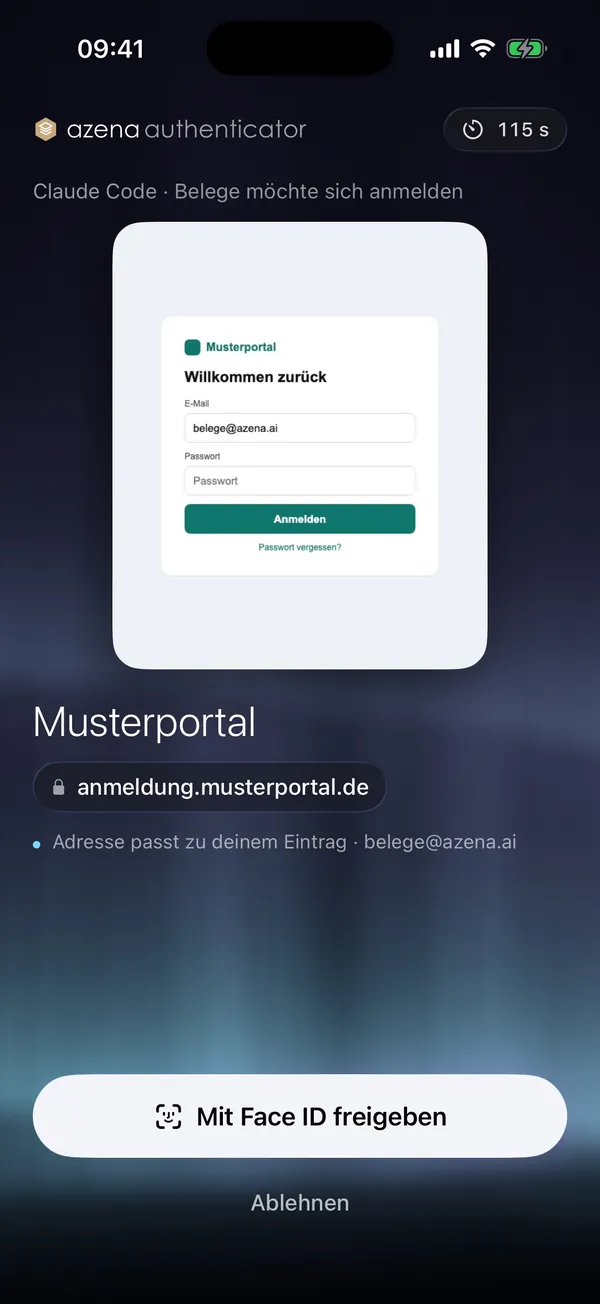
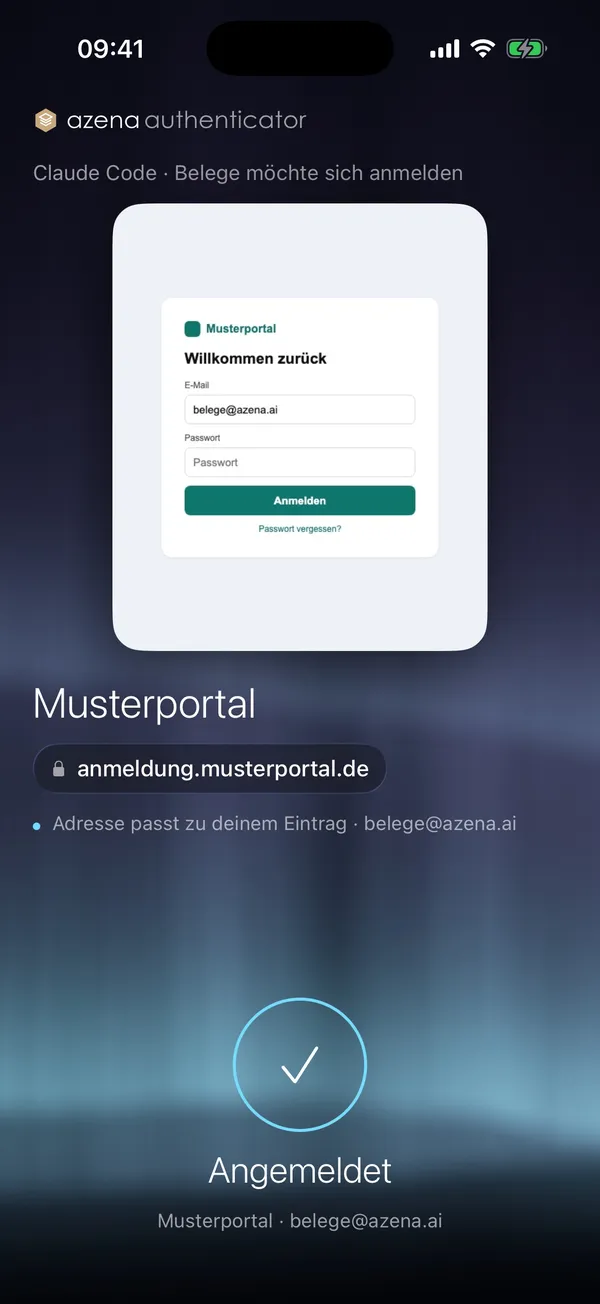
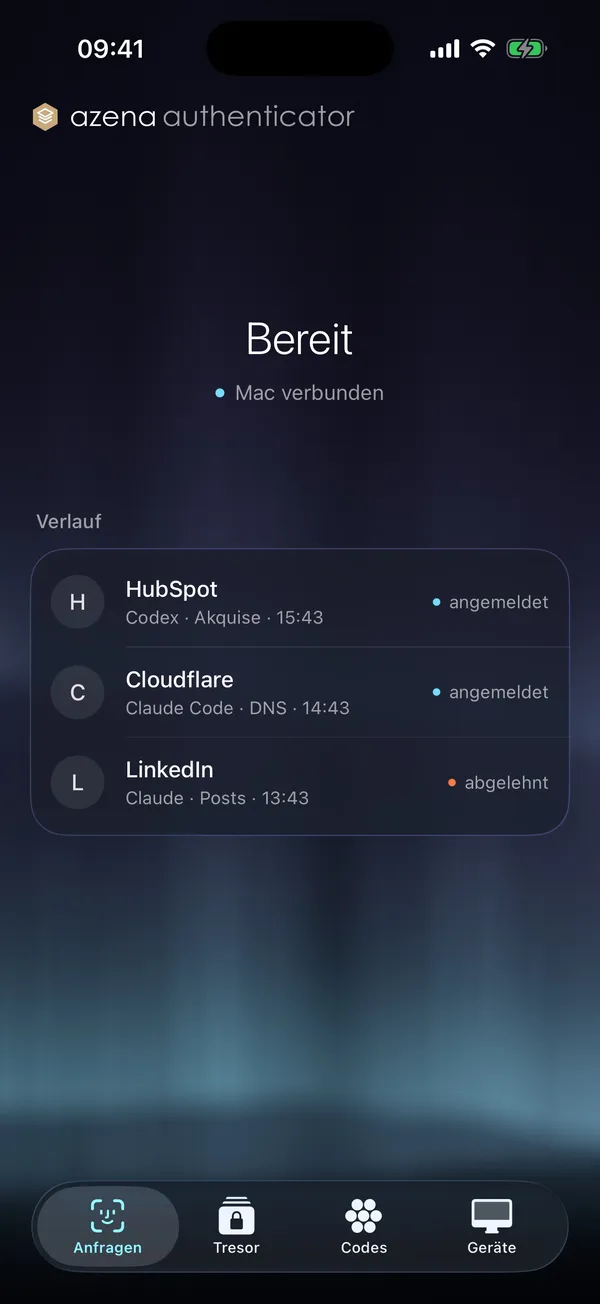
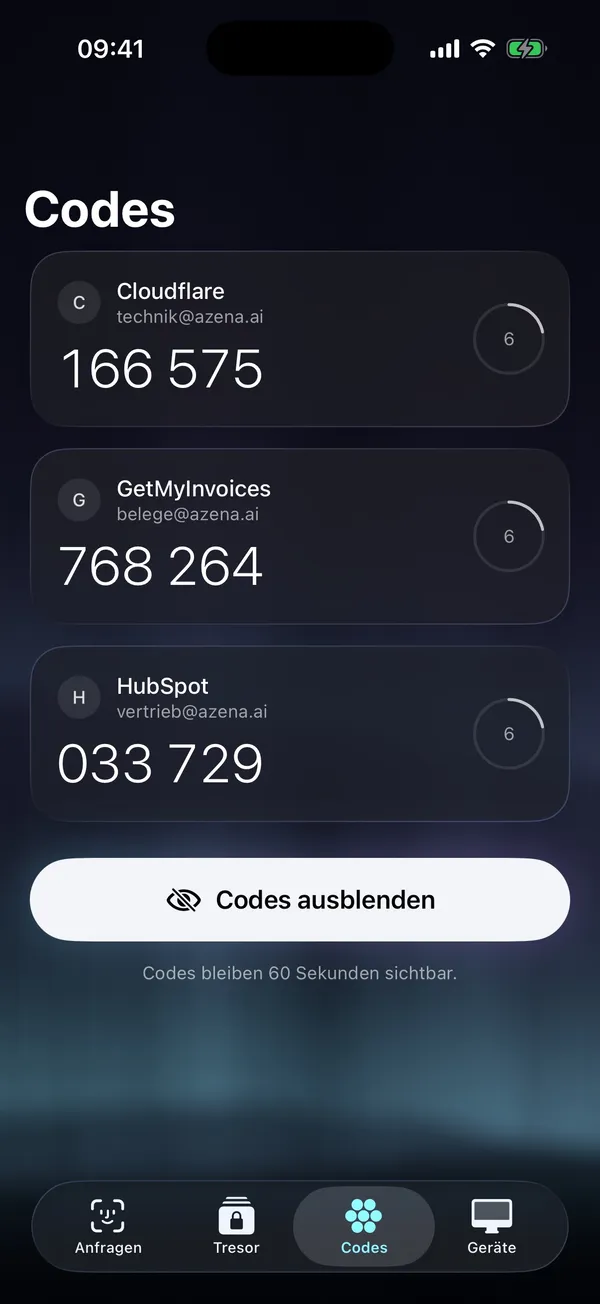
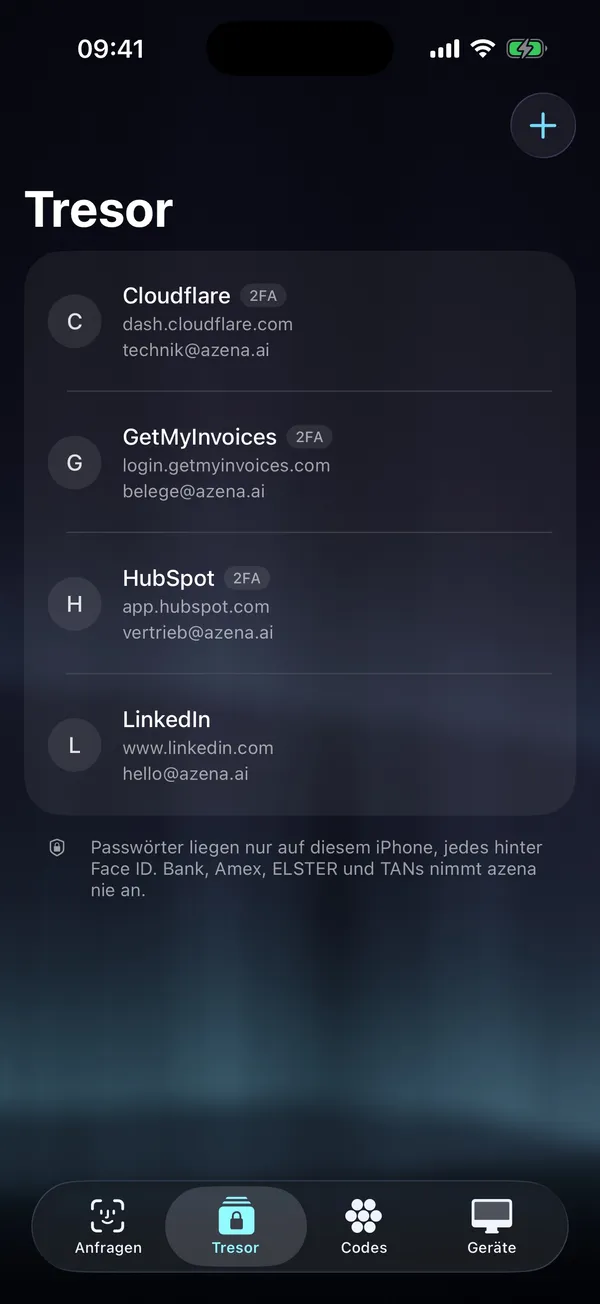


Who sees the password?
That is the real question. Our answer is a short list, and it is short on purpose.
Who gets to see what along the way
- The agentClaude, Codex …placeholder · status “signed in”NEVER
- Scripts on the pageincluding crafted onesazena-DcylXWRnhObyaAdZ52YQXQNEVER
- Relaybruecke.azena.aiaddress · encrypted packageNEVER
- Helper on the MacSecure Enclaveopens in the enclave · keeps ≤ 90 sBRIEFLY
- Your iPhonevaultbehind Face ID, exactly one addressYES
- The real websitethe login serverreceives the password, as alwaysYES
The trick below the page
The last metre is the hardest. A password that sits in a form field can be read by every script on the page. So our Chrome extension does not type the password at all, but a random placeholder. Only when the browser submits the form does the extension briefly hold the request through Chrome’s debugger interface and swap the placeholder in the body for the real password. This happens below the page. Neither page scripts nor the agent can reach it there.
Same form, two layers
The placeholder idea is not new. Researchers showed it for password managers in 2024, with a modified Firefox, and earlier work goes back to 2014. What is new in our system is threefold: we assume the agent itself is the attacker, we need no modified browser, and the password does not live in the browser but is released by the iPhone for each login separately. Our first lab test, by the way, went wrong. In six of nine ways to send a form, the swap worked. In the other three, the encoding changed the placeholder so that it was no longer recognised. The rules above came out of that.
Measured, not estimated
For the tests we planted spy scripts on the login page. They read every input field every five milliseconds and hooked into every way a page can send data. In every run the test service received the real password, and not a single spy script saw it.
System tests in seconds
So the cryptography costs about 15 milliseconds. The time that really counts is your glance at the iPhone.
Honestly: what is still missing
Before any of this goes into the App Store, we had it reviewed. Claude Mythos 5.1 read the code, the specification and the running relay from a defender’s point of view. Result: 25 findings, 2 of them critical and 5 high. The most important ones are in the paper, together with what we learned from them. For example, Face ID may only start after a deliberate tap, never on its own. That is why the app runs in our internal test for now, and real passwords only go in once the findings are fixed.
For the rare, high-impact steps we have designed a second stage. Pairing a new Mac, adding credentials and restoring onto a new iPhone are then confirmed with a hardware key such as a YubiKey as well. Only that key can open the vault backup.
The agent gets the door, not the key. And the key only comes after your yes.
What you should do now
- No passwords in agents. Not in the chat, not in notes an agent reads, not in browser profiles it remote-controls.
- Write down where your agents fail at logins today. That is the list any solution has to be measured against.
- Banking, payments and tax stay manual. We block these categories in the system on purpose, and we recommend the same to you.
- Read the paper. It is freely available under CC BY 4.0, with every flow as a figure.
If you want to try the agent authenticator with your own agents once the test phase opens, feel free to get in touch.


